Med CPD – How to Create a Provider Guide on Med CPD
July 26, 2026
How to Create a Provider Guide on Med CPD
Provider Guides are a feature for Med CPD education providers.
They allow providers to create structured educational content that helps healthcare professionals explore relevant clinical, professional, and practical learning topics. A well-created Provider Guide can support CPD discovery, explain important areas of practice, and provide useful guidance for users who are looking to learn more about a specific topic.
Provider Guides are designed to be educational first. They should help users understand a topic, explore an area of interest, or make more informed decisions about their professional learning.
For education providers, Provider Guides can also help build visibility and trust by showing your expertise in a practical and useful way.
Provider Guides are different from Learning Plans. Provider Guides are created by education providers through provider accounts, while Learning Plans are created by individual users through user accounts.
This guide explains how to create a Provider Guide on Med CPD and how to make it clear, helpful, and relevant for the Med CPD community.
What Is a Provider Guide?
A Provider Guide is a structured educational guide created by an education provider for the Med CPD community.
Provider Guides can be used to:
– Explain a clinical, professional, or practical learning topic
– Share professional knowledge and real-world insights
– Help users explore a specific area of CPD
– Provide useful guidance related to your area of expertise
– Support healthcare professionals who are looking for relevant learning options
A Provider Guide should be written to provide value to the reader. It should not simply be a sales page or promotional brochure.
The best Provider Guides are clear, practical, and easy to read. They help the reader understand something useful while also showing that your organisation has knowledge and experience in that area.
Provider Guides and Learning Plans
Provider Guides are created by education providers through a Med CPD provider account.
Learning Plans are created by individual Med CPD users through their own user account.
The key difference is who the content is created by:
– Provider Guides are provider-created educational resources.
– Learning Plans are user-created learning resources.
If you are an education provider creating content on behalf of your organisation, use a Provider Guide.
Why Provider Guides Matter
Provider Guides help healthcare professionals find useful information before they commit to a course, activity, or area of learning.
Many users come to Med CPD because they are exploring professional development options. They may not know exactly which course they need yet, but they may know the type of topic, skill, or area they want to understand better.
A useful Provider Guide can help your organisation:
– Reach users who are already exploring related CPD topics
– Demonstrate expertise in your area of education
– Build trust through practical, useful content
– Support users before they view your courses, activities, or provider profile
– Provide value beyond a standard course listing
Provider Guides work best when they lead with education and value. If the content is genuinely useful, users are more likely to trust your organisation and explore your broader educational offering.
Understand Your Target Audience
Before creating a Provider Guide, take time to identify who the guide is for.
The most effective guides are written for a clear audience. This may be a specific profession, stage of career, clinical area, work setting, or learning need.
Consider your ideal reader:
– What profession are they in?
– What problem are they trying to solve?
– What topic are they trying to understand?
– What would make this guide genuinely useful to them?
– What would help your organisation stand out as relevant and credible?
A Provider Guide should feel like it was written for the right person, not for everyone at once.
When you understand your target audience, it becomes easier to choose the right title, write a stronger short description, structure the content clearly, and select relevant professions, fields, and topics.
Before You Start
Before creating a Provider Guide, prepare the key details you will need.
Consider:
– The topic of the guide
– The intended audience
– The practical value for the reader
– The professional problem, question, or learning need being addressed
– Why your organisation is well placed to provide this guidance
– Any useful links, references, or resources
– A suitable featured image, if required
A clear plan will make the guide easier to write and more useful for readers.
Step 1: Open the Provider Guide Creation Page
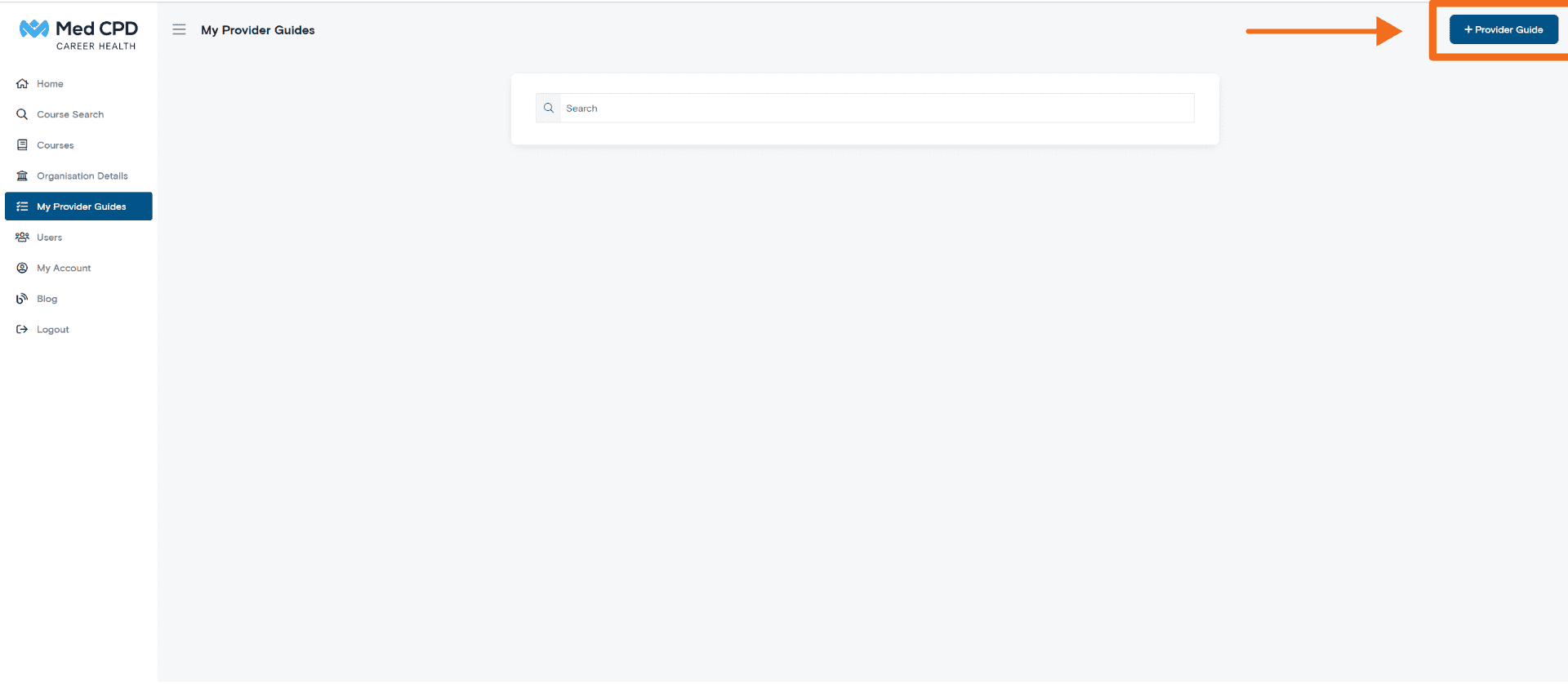
Navigate to the Provider Guide section within your Med CPD provider dashboard.
Select the option to create a new guide. This option is usually located in the top right corner of the page.
Step 2: Enter the Provider Guide Name
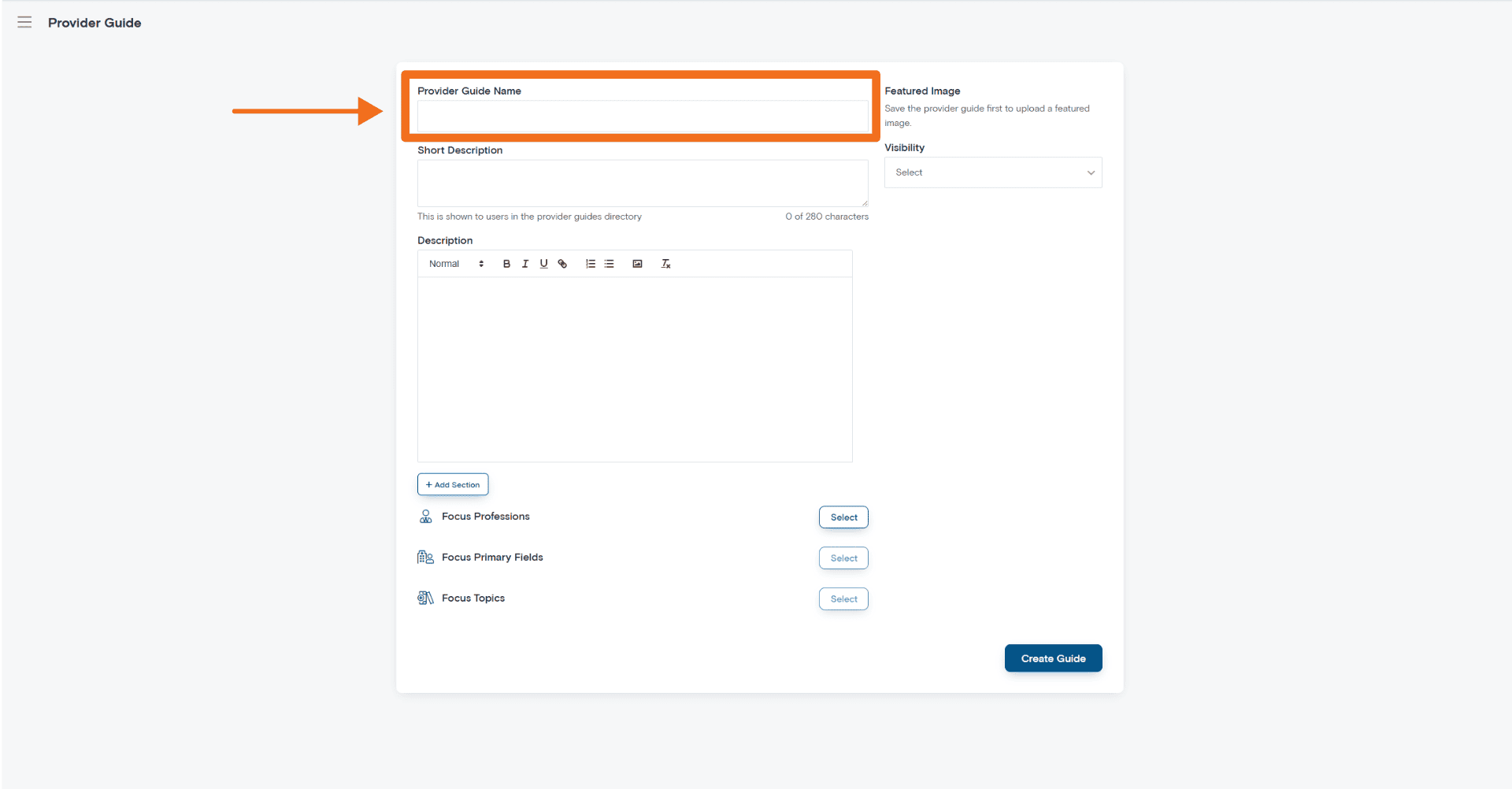
The Provider Guide Name is the title users will see in the Provider Guides directory.
Choose a title that clearly explains what the guide is about. A good title helps users quickly decide whether the guide is relevant to their needs.
Your title should make clear:
– The main topic
– The intended audience
– The focus of the guide
– The value the reader can expect
Good title examples
– A Practical Guide to Chronic Disease Management
– Starting in Rural General Practice
– Emergency Department Documentation Essentials
– Managing Burnout in Healthcare Settings
– Telehealth Communication Tips for Primary Care
Avoid
– Generic titles such as Guide, Helpful Information, or Important Tips
– Titles that are too vague
– Overly promotional wording
– Titles that do not accurately reflect the guide content
A clear and specific title improves readability, discoverability, and engagement.
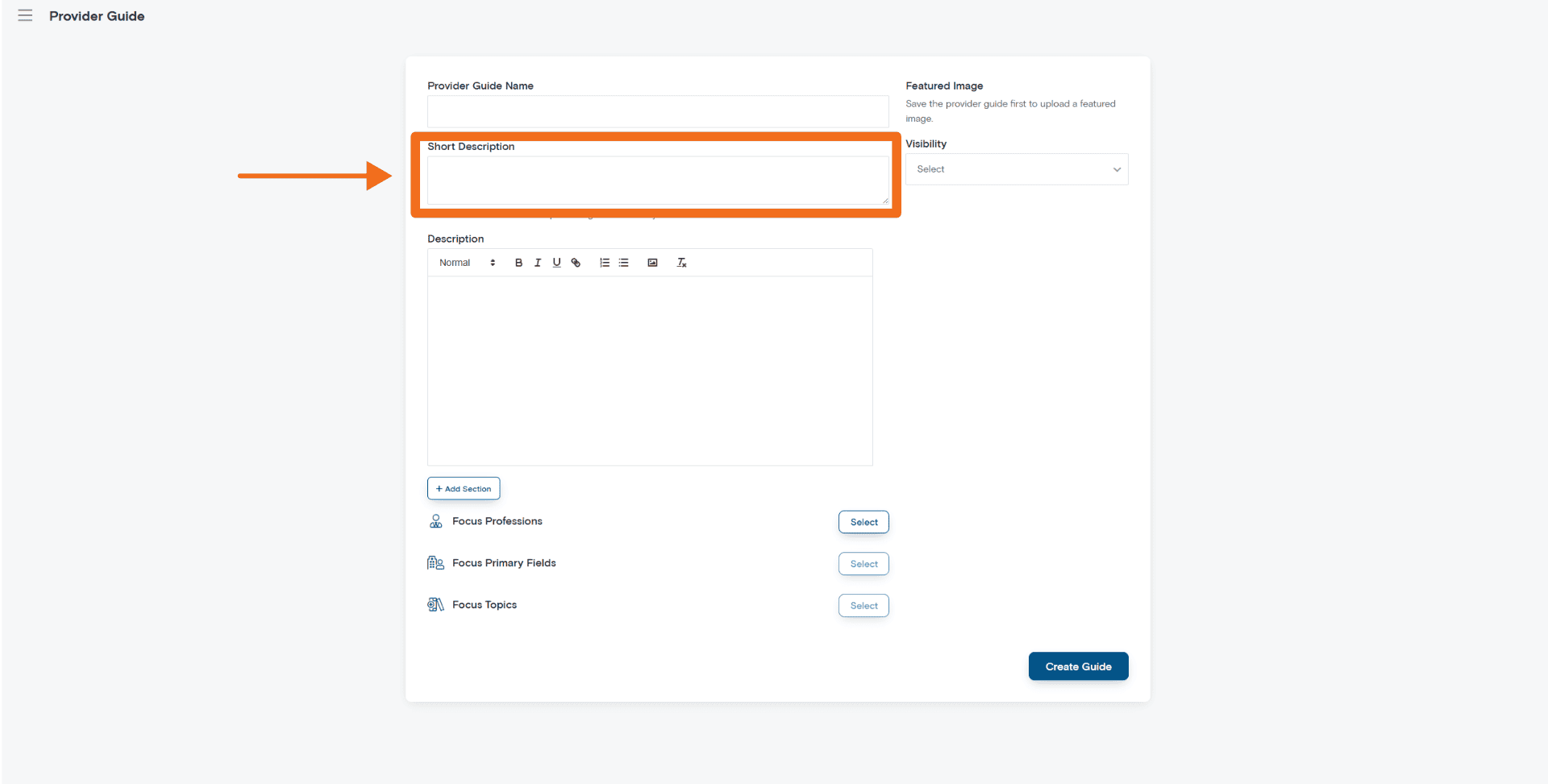
Step 3: Write the Short Description
The Short Description appears in the Provider Guides directory. It helps users quickly understand what the guide covers before they open it.
You can enter up to 280 characters.
A strong short description should explain:
– The main topic
– Who the guide is for
– What the reader will learn or gain
Example
A practical introduction to rural healthcare workflows, communication, and patient management for early-career GPs.
Tips
Keep it concise, specific, and focused on value for the reader. Avoid repeating the title word-for-word.
Step 4: Write the Main Guide Description
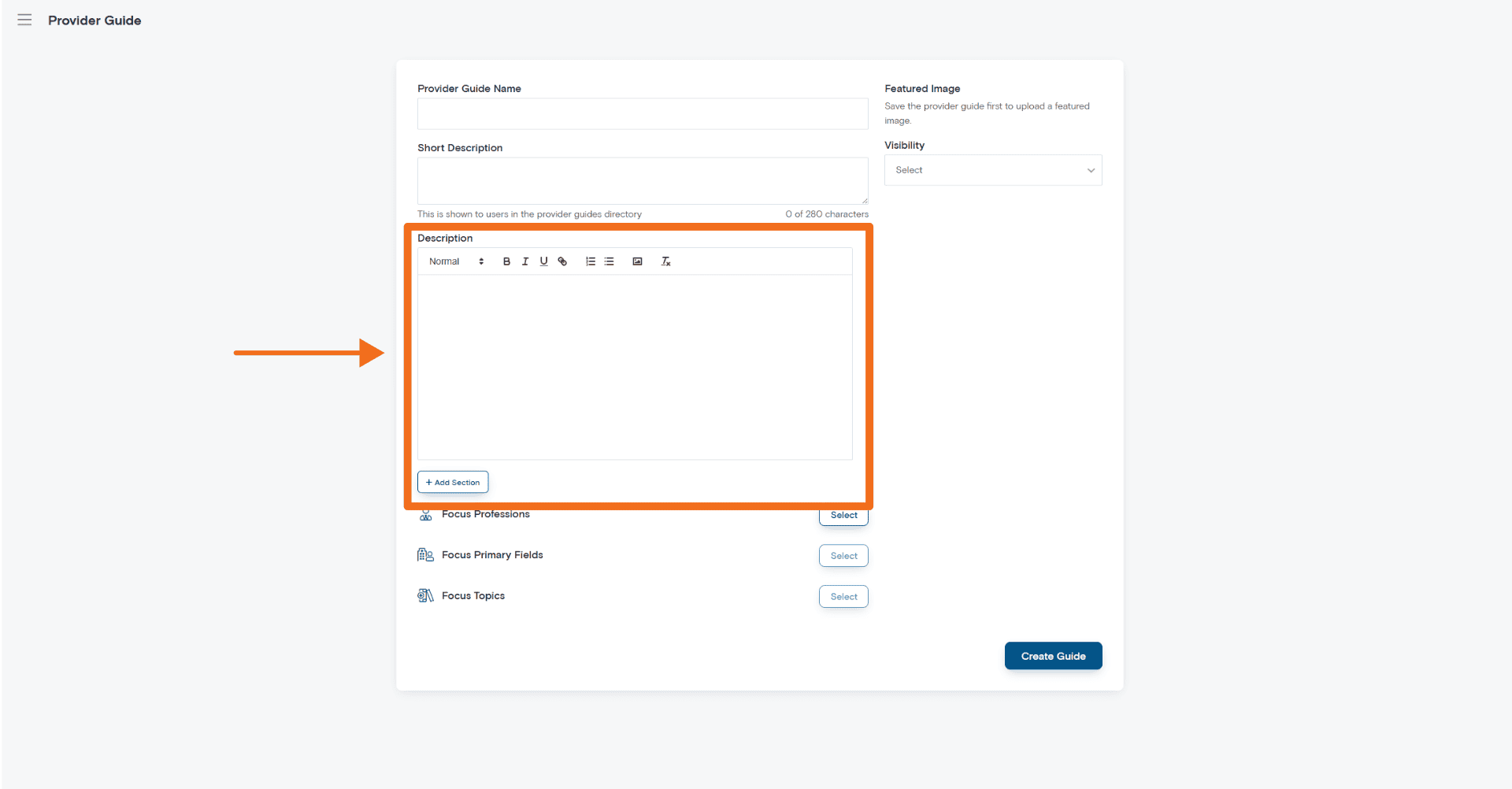
The Description section is where you enter the main content of your Provider Guide.
This is the core of the guide. Use this section to explain the topic, share useful insights, and present information in a way that is easy for healthcare professionals to follow.
The text editor allows you to format your content using:
– Headings
– Bold text
– Bullet points
– Links
– ImagesAdditional content blocks or sections
The main description should be practical, structured, and easy to scan.
As you write, keep your intended audience in mind. A guide for early-career clinicians may need more background explanation, while a guide for experienced professionals may benefit from more advanced insights, workflows, or decision points.
Step 5: Structure Your Guide Clearly
A clear structure makes your Provider Guide easier to read and more useful for healthcare professionals.
A simple structure may include:
Introduction
Explain the purpose of the guide, who it is for, why the topic matters, and what the reader can expect to learn.
Main content sections
Break the guide into clear sections. These may cover clinical workflows, communication strategies, documentation tips, professional advice, case-based learning, or common challenges.
Practical tips
Include useful, actionable insights where appropriate. This may include lessons from practice, common mistakes to avoid, helpful processes, or questions for the reader to consider.
Additional resources
You may include relevant resources such as professional guidelines, recommended reading, educational references, or links to further learning.
Only include resources that are relevant, credible, and useful for the reader.
Summary or key takeaways
Finish with a short summary or key takeaways section to help readers quickly review the main points.
Step 6: Use Formatting for Readability
Healthcare professionals are often time-poor. Many users will scan a guide before deciding whether to read it in full.
To improve readability:
– Keep paragraphs short
– Use headings regularly
– Use bullet points for lists
– Break long sections into smaller parts
– Avoid large blocks of text
– Use simple, professional language
– Keep the content focused on the reader’s needs
Avoid dense academic formatting, excessive jargon, unclear section titles, and large sections copied directly from another document without formatting review.
A well-formatted guide is easier to read, easier to navigate, and more likely to be useful.
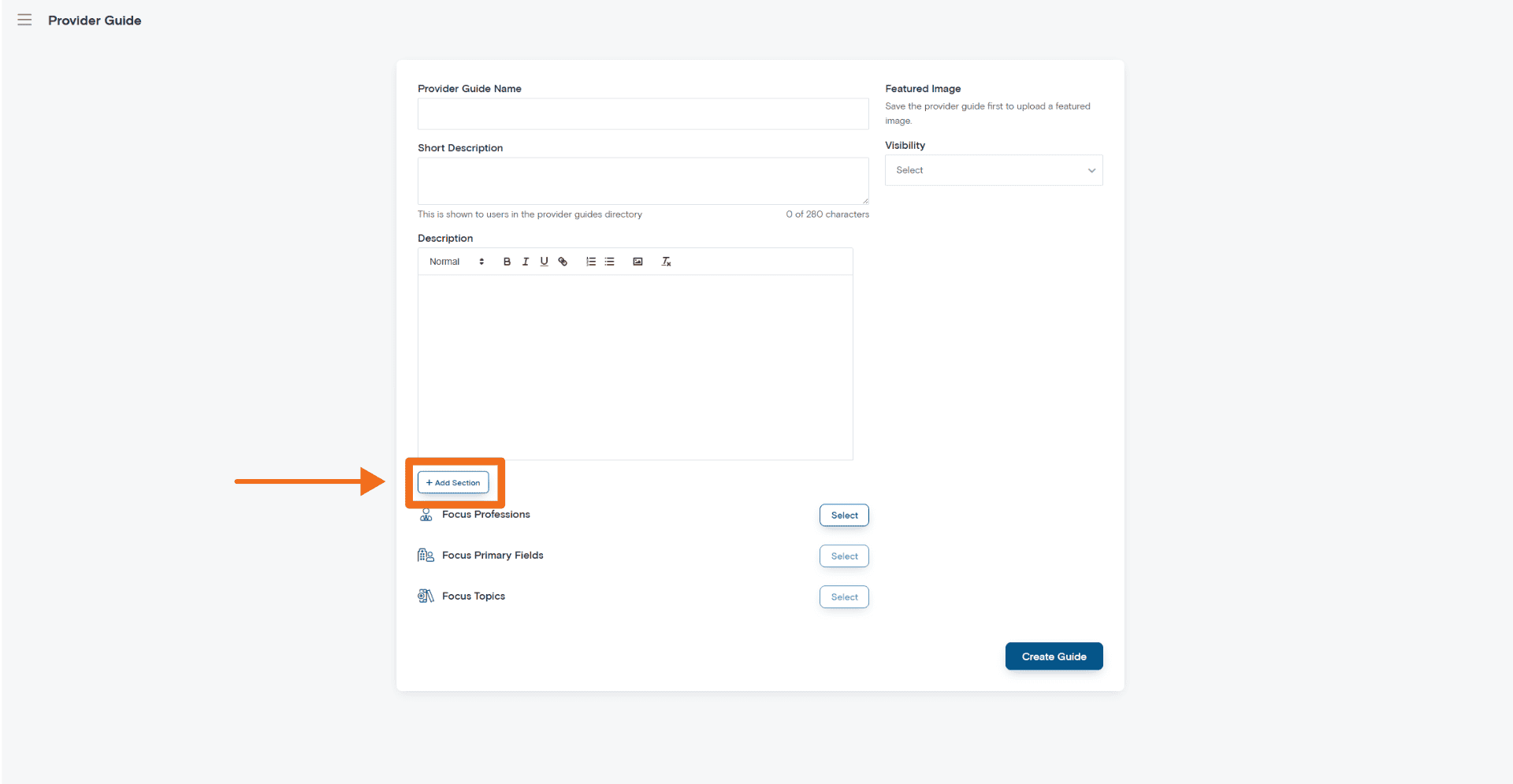
Step 7: Add Additional Sections
Use the Add Section button to create structured content blocks within your guide.
Additional sections can help organise longer guides or separate different learning areas.
You may use additional sections for:
– Chapters or learning topics
– Clinical focus areas
– Case examples
– Practical workflows
– Frequently asked questions
– Resource lists
– Key takeaways
Breaking your guide into sections improves navigation and helps users find the information most relevant to them.
Step 8: Configure Visibility Settings
The Visibility setting controls who can access your Provider Guide.
Visibility options may vary depending on your provider account and platform settings.
Depending on the available configuration, options may include:
– Public visibility – available more broadly to users
– Restricted access – available to selected users or groups
– Link access – accessible through a direct link, where enabled
Choose the setting that best matches your intended audience and the purpose of the guide.
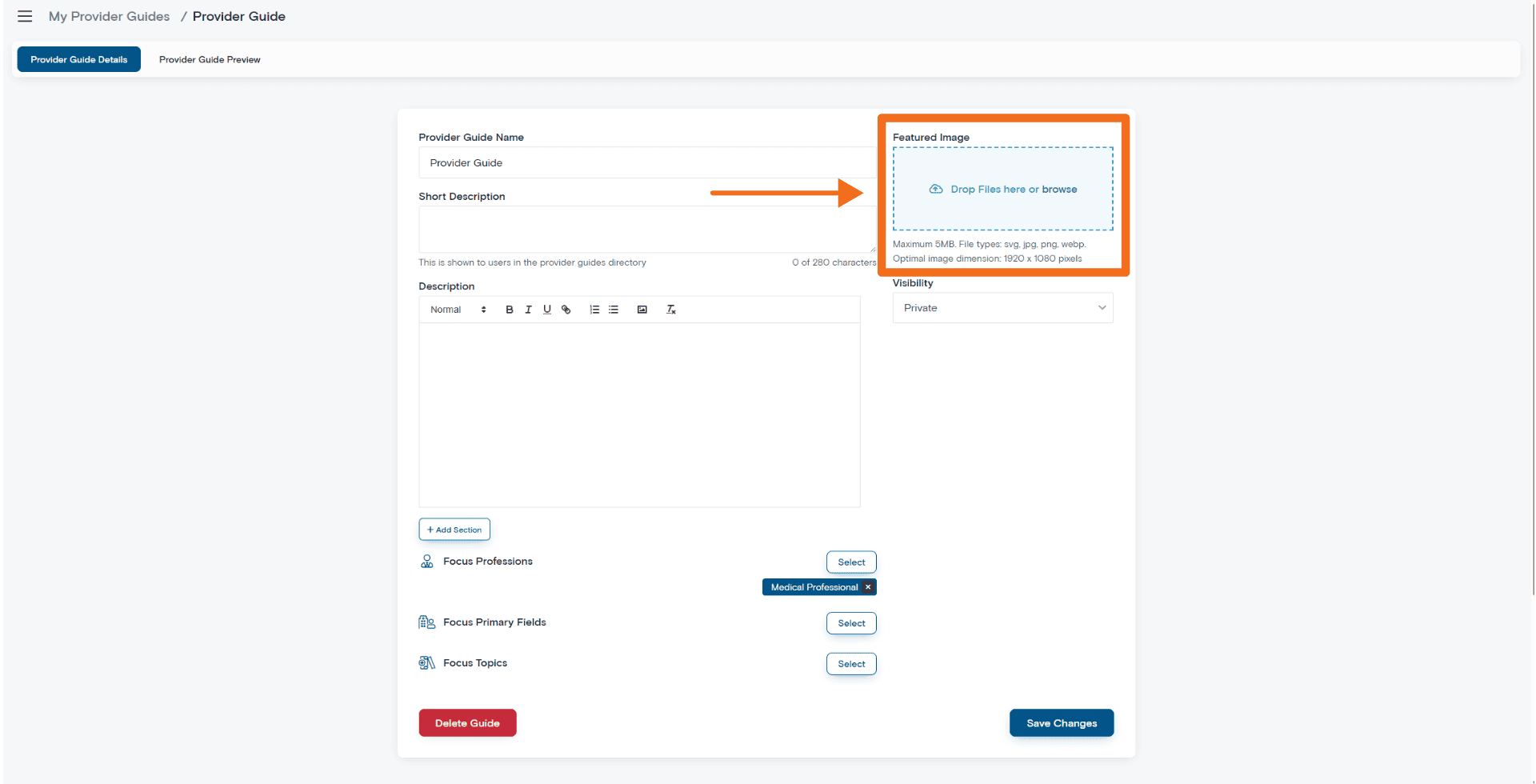
Before publishing, check that your visibility setting is correct. Once you’re done click Create Guide. You will notice the page has changed slightly, you can now add your featured image.
Step 9: Upload a Featured Image
A Featured Image helps your Provider Guide stand out in the Provider Guides directory.
Choose an image that is professional, relevant, and visually clear.
Use professional healthcare imagery, educational graphics, relevant workplace photos, or clean branded visuals.
Avoid low-quality images, blurry or stretched images, text-heavy banners, irrelevant stock imagery, or images that are overly promotional.
Depending on the platform workflow, you may need to save the guide before uploading a featured image. If the image upload option is not available immediately, save your progress and return to the guide to upload the image.
Step 10: Select Focus Professions
Focus Professions help categorise your Provider Guide for relevant healthcare audiences.
Select the professions that genuinely relate to the guide content and the audience you are trying to reach.
Examples may include:
– Medical Professional
– Nurse
– Pharmacist
– Physiotherapist
– Psychologist
– Occupational Therapist
– Dental Practitioner
– Podiatrist
– Speech Pathologist
– Aged Care Worker
– Disability Support
– Paramedic
– Midwife
– Exercise Physiologist
Accurate profession selection helps users find guides that are more relevant to their role, interests, or learning needs.
Avoid selecting unrelated professions purely to increase visibility. This can reduce relevance and make the guide less useful for users.
Step 11: Select Focus Primary Fields
Focus Primary Fields help narrow the guide topic based on clinical, professional, or practice areas.
Select fields that closely align with the main content of your guide and the audience you are trying to support.
Examples may include:
– General Practice Medicine
– Emergency Medicine
– Mental Health
– Chronic Disease
– Aged Care
– Rural Health
– Digital Health
– Life Support
– Infection Prevention and Control
– Personal Development
– Personal Health and Wellbeing
– Medico-legal
– Private Practice
– Rehabilitation
– Pain Management
– Palliative Care
Accurate field selection helps users discover guides that match their interests and CPD planning needs.
Step 12: Select Focus Topics
Focus Topics help categorise your guide for search, filtering, and discovery.
Choose only the topics that genuinely reflect your guide content and match the audience you want to reach.
For stronger relevance and SEO value, prioritise recognisable topic areas that users are likely to search for, such as:
– General Practice Medicine
– Emergency Medicine
– Mental Health
– Aged Care
– Digital Health
– Life Support
– Infection Prevention and Control
– Medico-legal
– Rural Health
– Personal Health and Wellbeing
– Pain Management
– Palliative Care
– Private Practice
– Clinical Teaching
– Exam Preparation
– Rehabilitation
Do not select topics simply to increase visibility. Accurate topic selection helps the right users find your guide and maintains the quality of the Provider Guides directory.
A useful way to decide is to ask:
– Does the guide genuinely discuss this topic?
– Is this topic relevant to the audience I am trying to reach?
– Would selecting this topic help the right user find the guide?
If the answer is no, leave the topic out.
Step 13: Review Your Guide Before Publishing
Before publishing, review your guide carefully.
Check that:
– The title is clear, specific, and professional
– The short description explains the guide clearly
– The intended audience is clear
– The main content is useful and relevant
– Sections are organised in a logical order
– Links and resources work correctly
– The featured image displays properly
– Focus Professions, Primary Fields, and Topics are accurate
– Visibility settings are correct
– The guide avoids excessive promotion or unsupported claims
Taking time to review your guide improves the reader experience and helps maintain the quality of content on Med CPD.
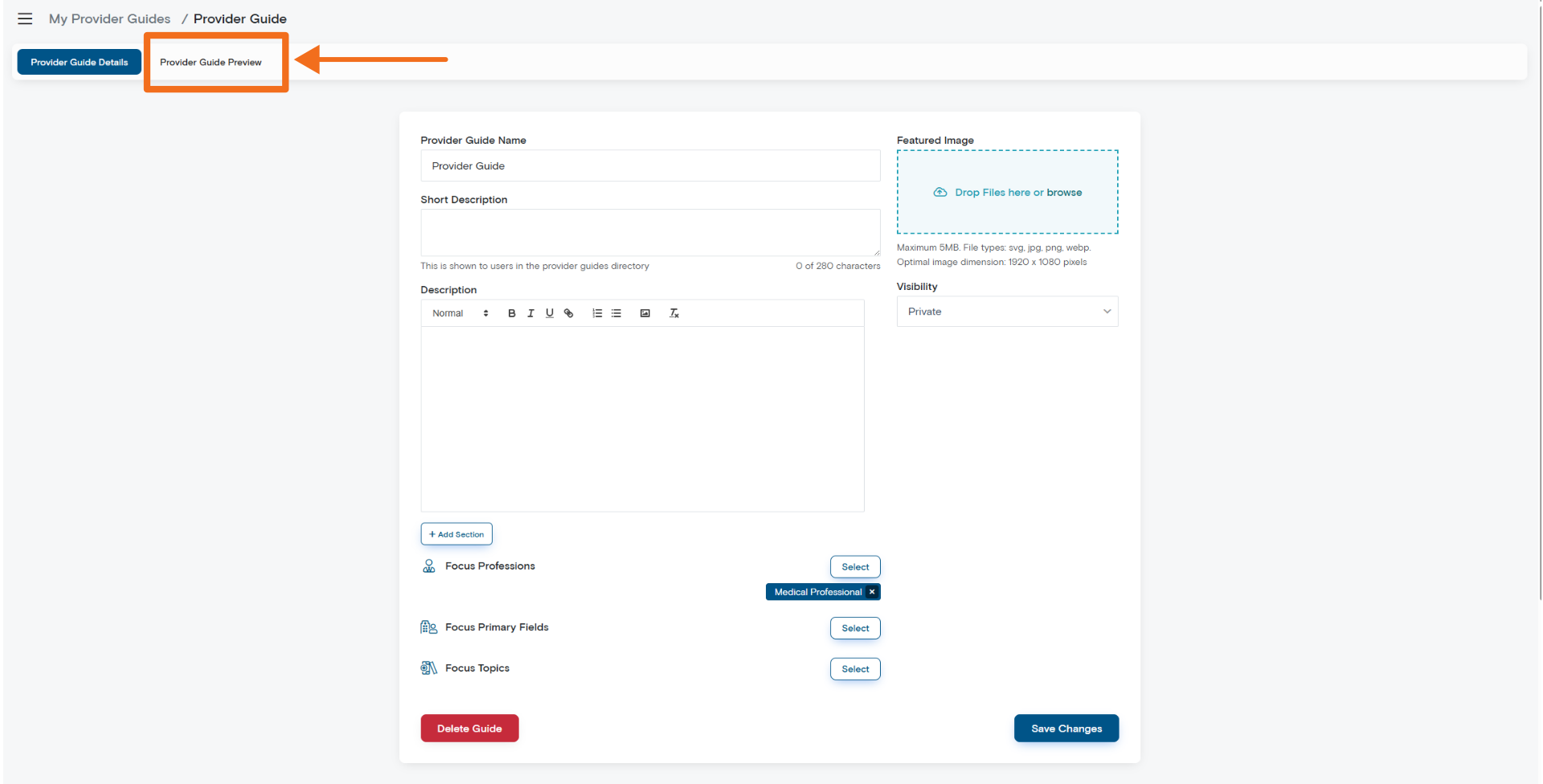
Step 14: Create or Publish the Guide
Once all required fields are complete and you have reviewed the content, select Create Guide or the relevant publishing option.
Your guide will become available based on the visibility settings you selected.
After publishing, review the live version to confirm that the formatting, image, links, and sections display correctly.
Best Practice Tips for High-Quality Provider Guides
Know who you are writing for
The strongest Provider Guides are written for a specific audience.
Before writing, identify your target reader or ideal user. This could be based on profession, career stage, clinical setting, topic interest, or learning need.
When your audience is clear, your guide becomes more relevant, more useful, and more likely to stand out.
Focus on practical learning
Healthcare professionals often value content that is practical, relevant, and easy to apply.
Where appropriate, include real-world insights, practical examples, clear workflows, case-based reflections, common challenges, and lessons learned from practice.
Write for busy clinicians and health professionals
Many users will scan a guide before deciding whether to read it fully.
Keep your content structured, concise, easy to scan, professionally written, and focused on the reader’s needs.
Lead with value, not promotion
Provider Guides can help your organisation build visibility, but they work best when they are genuinely useful to the reader.
Focus on education first. Use the guide to explain a topic, share practical insights, answer common questions, or help users navigate an area of professional development.
Avoid turning the guide into a sales page. Users are more likely to trust and engage with your organisation when the content is helpful, relevant, and professionally balanced.
A strong Provider Guide should make the reader think:
“This provider understands this topic and has something useful to offer.”
Stand out by solving a real problem.
A Provider Guide is more valuable when it addresses something your target audience actually cares about.
This may include a common clinical challenge, a confusing professional pathway, a practical workflow problem, a recurring learner question, or a topic where your organisation has specific expertise.
The goal is not to speak to everyone. The goal is to provide clear value to the right people.
Keep clinical and professional content responsible
Provider Guides should be educational, professional, and evidence-aware.
Where clinical or professional guidance is included, make sure it is appropriate to your organisation’s expertise, professional scope, and educational purpose.
Avoid unsupported clinical claims, overstated outcomes, advice outside your expertise, or content that could be mistaken for individual medical, legal, or professional advice.
Encourage readers to apply professional judgement and refer to relevant guidelines, standards, or regulatory requirements where appropriate.
Suggested Provider Guide Ideas
Useful Provider Guides may cover clinical, professional, educational, or career development topics.
Examples include:
– Transitioning into private practice
– Documentation best practices
– Managing multidisciplinary communication
– Rural healthcare preparation
– Telehealth consultation workflows
– Career development in allied health
– Preventing clinician burnout
– CPD planning strategies
– Supporting junior clinicians
– Navigating professional registration pathways
– Building effective referral workflows
– Improving patient education
The best guides focus on a clear topic, a defined audience, and practical information that readers can apply.
Troubleshooting
I cannot upload a featured image
Save the guide first, check the image format and size, refresh the page, and try uploading the image again.
My guide is not appearing
Check that the guide was successfully created, the visibility setting is correct, and the correct professions, fields, and topics were selected.
The formatting looks incorrect
Review headings, bullet points, spacing, and any content copied from Word, Google Docs, PDFs, or external editors.
Pasting from external documents may introduce formatting issues. If this occurs, paste the content as plain text and reapply formatting within the Med CPD editor.
My links are not working
Check that the full URL has been entered correctly, the linked page is accessible, and the link has been applied to the correct text.
Frequently Asked Questions
Can general Med CPD users create Provider Guides?
No. Provider Guides are designed for education providers and approved provider accounts.
Individual Med CPD users who want to create their own structured learning content should use a Learning Plan instead.
What is the difference between a Provider Guide and a Learning Plan?
A Provider Guide is created by an education provider through a provider account.
A Learning Plan is created by an individual user through a user account.
The main difference is the source of the content: Provider Guides come from providers, while Learning Plans come from individual users.
Are Provider Guides meant to promote my organisation?
Provider Guides can support your organisation’s visibility, but they should not be written as direct advertisements.
The strongest guides provide genuine educational value first. This can naturally build trust and help users recognise your organisation as a credible education provider.
Who should I write the guide for?
Write the guide for the health professionals who are most likely to benefit from the topic.
Consider their profession, experience level, clinical or professional interests, learning needs, and the reason your organisation is well placed to support them.
How long should a Provider Guide be?
There is no single required length. The guide should be long enough to provide useful information, but structured enough to remain easy to read.
Focus on clarity, usefulness, and readability rather than word count.
Can I include links to my courses or resources?
Yes, where relevant. Links can help users continue their learning or access additional information.
However, links should support the guide content rather than dominate it.
Can I edit a Provider Guide after publishing?
If editing is available through your provider dashboard, you may be able to update the guide after it has been created.
After making changes, review the guide again to confirm that the content, formatting, links, images, and visibility settings are still correct.
Need Help?
If you experience issues creating or managing Provider Guides, contact the Med CPD support team for assistance.
support@medcpd.com
Share to: