How to Sign Up for STAT: A Guide for Healthcare Professionals
November 2, 2026
How to Sign Up for STAT: A Guide for Healthcare Professionals
STAT gives Australian healthcare professionals opportunities to share their expertise, contribute insights to healthcare organisations and earn payment for their time. Through the Med CPD partnership, practitioners can also access CLARA, STAT’s AI-powered reflection tool, as part of the Earn & Learn™ experience.
If you’re ready to get started, this guide walks you through creating your STAT account and exploring what’s available once you log in.
What you’ll need to sign up
Before you begin, have the following details ready:
-
Your full name and date of birth.
-
Your AHPRA registration number (MED number).
-
Your postcode.
-
An email address you can access.
-
A password for your new account.
STAT is free to join for AHPRA-verified healthcare practitioners. You’ll need to confirm your professional details during registration.
Step 1: Create your login
Create your account credentials.
-
Enter your email address.
-
Create a password.
-
Enter the password again to confirm it.
-
Read and agree to STAT’s Terms of Use and Privacy Policy.
-
Select Continue.
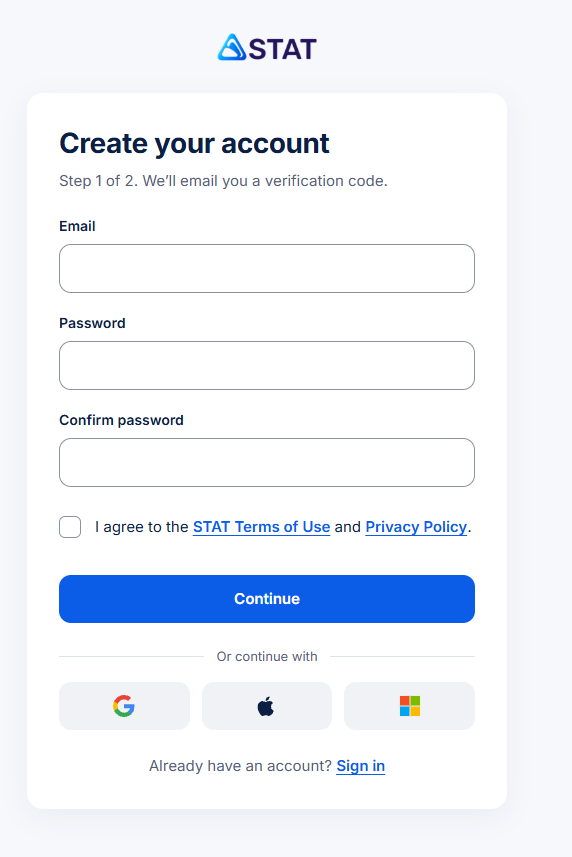
The registration screen indicates that STAT will email you a verification code. Follow the instructions provided to complete the email verification process.
You can also see options to continue using Google, Apple or Microsoft, alongside the standard email registration option.
Step 2: Enter your personal details
Step 2: Enter your personal details
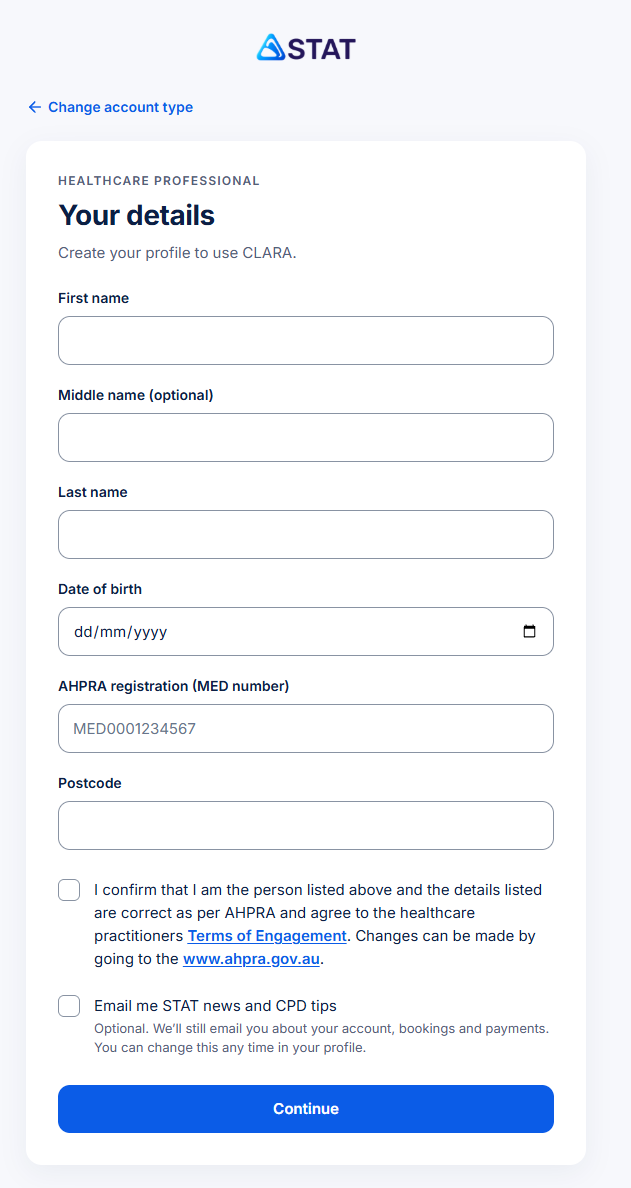
Next, complete the Your details form.
You’ll be asked for:
-
First name and last name.
-
Middle name, if applicable (optional).
-
Date of birth.
-
AHPRA registration number (MED number).
-
Postcode.
Confirm that you are the person listed and that your details are correct according to AHPRA. You’ll also need to agree to the healthcare practitioners’ Terms of Engagement.
There’s an optional checkbox to receive STAT news and CPD tips. You can leave this unchecked if you prefer not to receive these updates; account-related emails will still be sent.
Select Continue to proceed.
Step 3: Select your healthcare profession
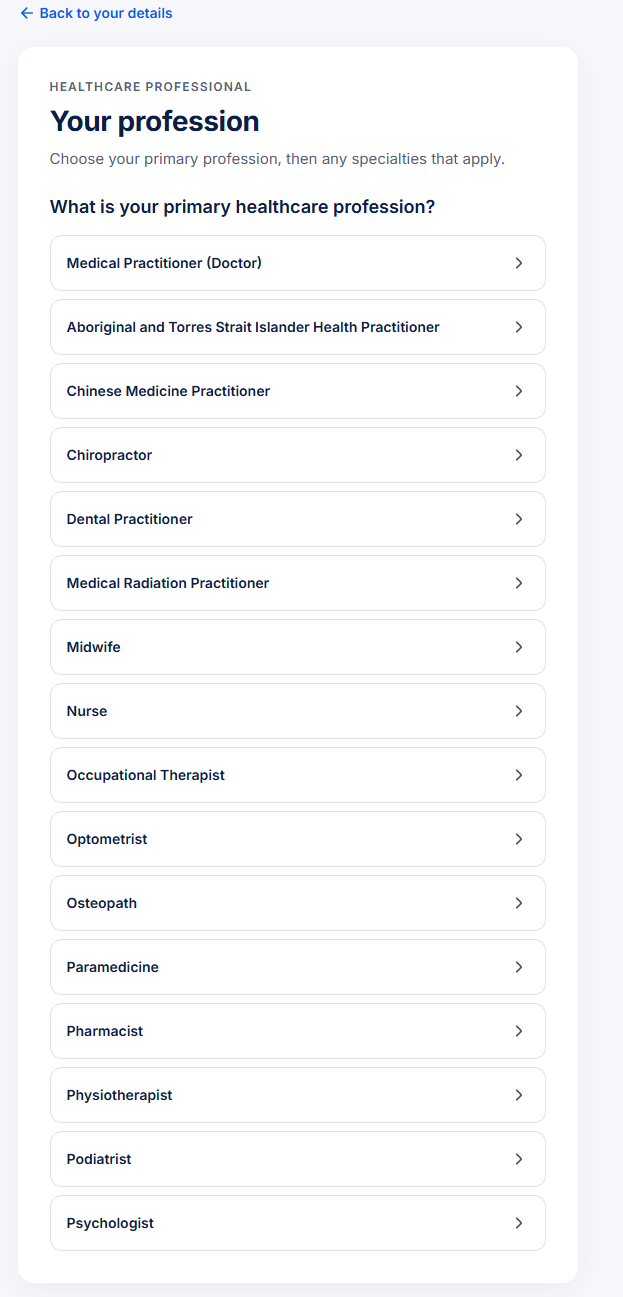
Next, choose your primary healthcare profession from the list.
The options shown include medical practitioners, nurses, midwives, pharmacists, physiotherapists, psychologists and several other registered health professions.
Depending on your profession, you may also be asked to select a specialty. Choose the option that accurately reflects your professional registration.
Step 4: Confirm your professional details
Review the summary of your profession and any applicable specialty.
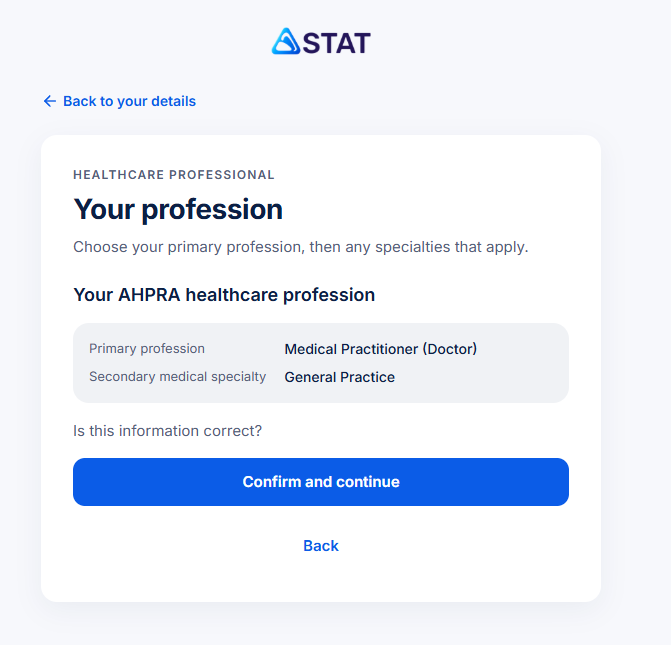
Check that the information is correct before selecting Confirm and continue. If anything needs changing, use the back option to review your selections.
This step helps ensure your professional profile reflects the details associated with your registration.
What can you do once you’re logged in?
All done! You should now have access to the STAT Dashboard.
Once you’ve accessed your account, you’ll find several areas to explore. Here’s what each one is for.
Reflect – CLARA
Reflect on something you’ve learned, including learning completed on Med CPD. CLARA guides you through structured prompts to create a documented reflection in your own words.
Completed reflections are paid through STAT CoPay™.
Share insights
Browse question sessions on topics relevant to your practice. The platform shows the estimated time and payment before you begin, allowing you to decide which opportunities suit you.
Innovators
Explore healthcare organisations and the work they’re doing. You can express interest in organisations that align with your interests and explore paid meeting opportunities.
STAT CoPay™
Access the payment area where your earnings are recorded. Your Wallet Balance holds your fees, while your Giving Balance tracks contributions made by STAT to causes you choose.
You’ll also see Chats, Meetings and My activity, which help you manage conversations, meetings and your activity on the platform.
Using STAT CLARA on Med CPD
Once you’ve created your STAT account, the next step is to install the STAT CLARA Chrome extension. This connects your STAT account with your learning experience on Med CPD.
You can install the extension directly from the Chrome Web Store.
After installation, open Med CPD in Google Chrome and you should see the STAT CLARA panel alongside the website.
Here’s what it looks like when STAT CLARA is installed:
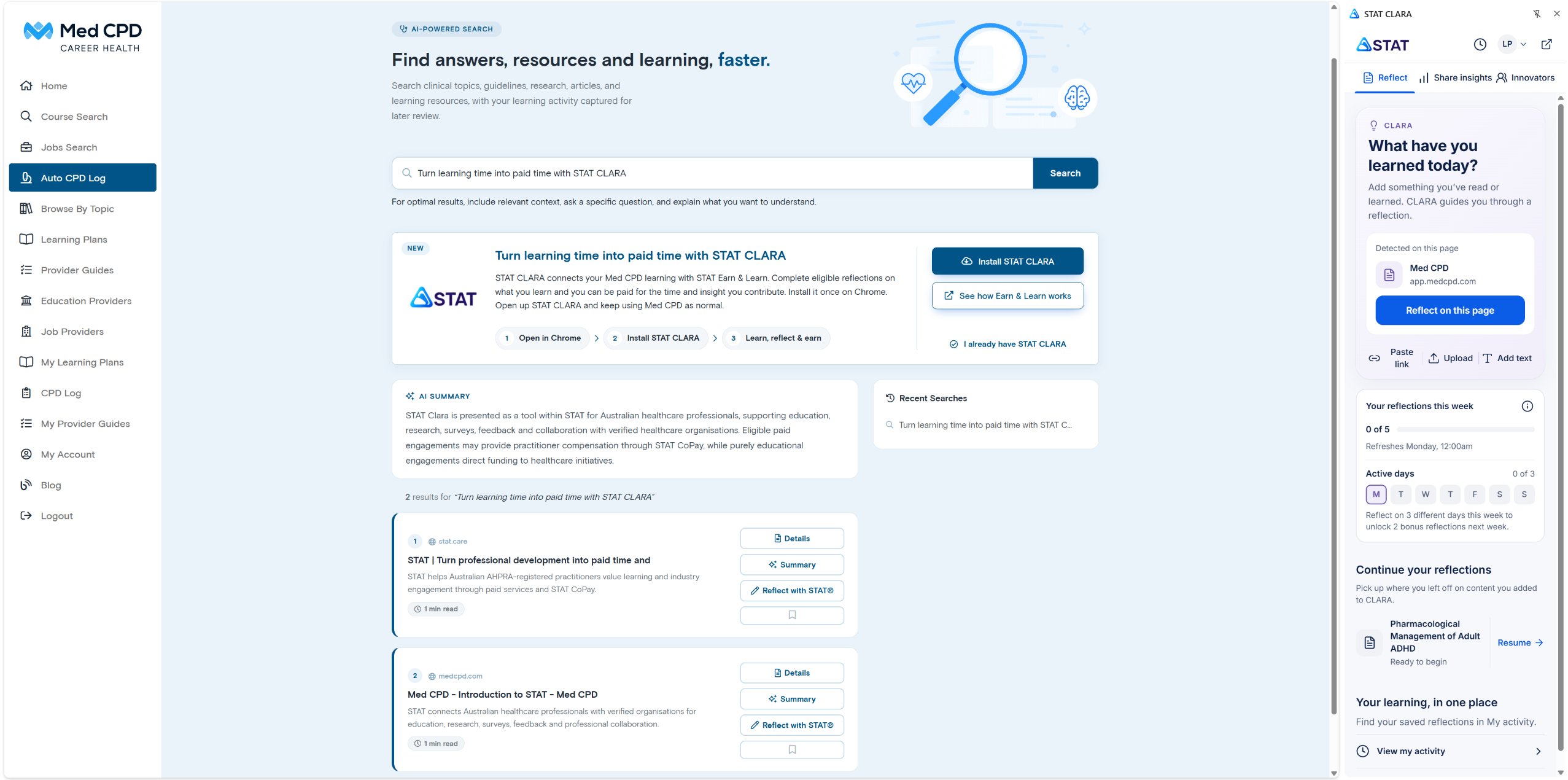
You’ll see the STAT CLARA panel on the right-hand side of your browser. From here, you can:
- Reflect on this page: Start a CLARA reflection on the Med CPD content you’re viewing by either clicking ‘Reflect with STAT’ while using the Auto CPD Log or ‘Reflect on this page’ in the panel on the right.
- Share insights: Explore available paid question sessions relevant to your professional experience.
- Innovators: Discover organisations working in healthcare and explore opportunities to connect.
How to use CLARA with your Med CPD learning
- Open the learning content you want to reflect on in Med CPD.
- Open the STAT CLARA panel in Chrome.
- Select Reflect on this page.
- Follow CLARA’s prompts to record what you learned and how it relates to your practice.
- Complete your reflection and keep the resulting documentation.
You remain in control of when you use CLARA. The extension does not read the page content before you choose to start a reflection.
How do payments and giving work?
STAT pays practitioners for their contributions, with fees set according to the time an activity takes and its fair market value.
A few things to know:
-You choose your activities. You can decide which opportunities interest you and decline those that don’t.
-Your earnings are separate from giving. STAT contributes from its own margin to a verified cause you select. This is tracked in your Giving Balance and is not deducted from your fee.
-An ABN may be required. The launch information states that an ABN is required for some activities and to withdraw earnings. Check the applicable requirements within STAT before proceeding.
The payment displayed for an opportunity can help you decide whether the time commitment suits you before you start.
Does a CLARA reflection count towards my CPD?
CLARA helps you document your learning and reflection, including the key learning, its relevance to your practice and any changes you may make.
However, payment for a reflection does not determine how it is recognised for CPD purposes. Your CPD home or relevant professional board determines how an activity is accepted and categorised.
Keep the resulting documentation with your CPD records and check the requirements that apply to your professional circumstances.
Frequently asked questions
Is it free to join STAT?
Yes. STAT is free to join for AHPRA-verified practitioners. Some activities and withdrawal arrangements may have additional requirements, including an ABN.
Do I have to take part in every opportunity?
No. You choose which question sessions, meetings and other opportunities you want to pursue.
Can I use CLARA with learning completed on Med CPD?
Yes. Through Earn & Learn™, you can choose Reflect on this in the STAT widget after completing learning on Med CPD, then follow CLARA’s prompts.
Will organisations see my personal contact details?
According to the supplied STAT launch information, responses to question sessions are reported in de-identified form, and organisations do not buy practitioners’ contact details. If you choose to connect with an organisation, you control whether you express interest in meeting with them.
Does getting paid mean my activity is automatically CPD-approved?
No. Payment and CPD recognition are separate. Your CPD home or professional board determines how an activity is accepted and categorised.
Share to: