Provider Guide: How to Create a Course on Med CPD
October 25, 2026
Provider Guide: How to Create a Course on Med CPD
This guide walks you through creating a course on Med CPD, from adding a new course to reviewing your listing and publishing it.
Step 1: Open Courses and add a course
– Log in to your Med CPD provider account.
– Select Courses from the left-hand menu.
– Click Add Course in the top-right corner.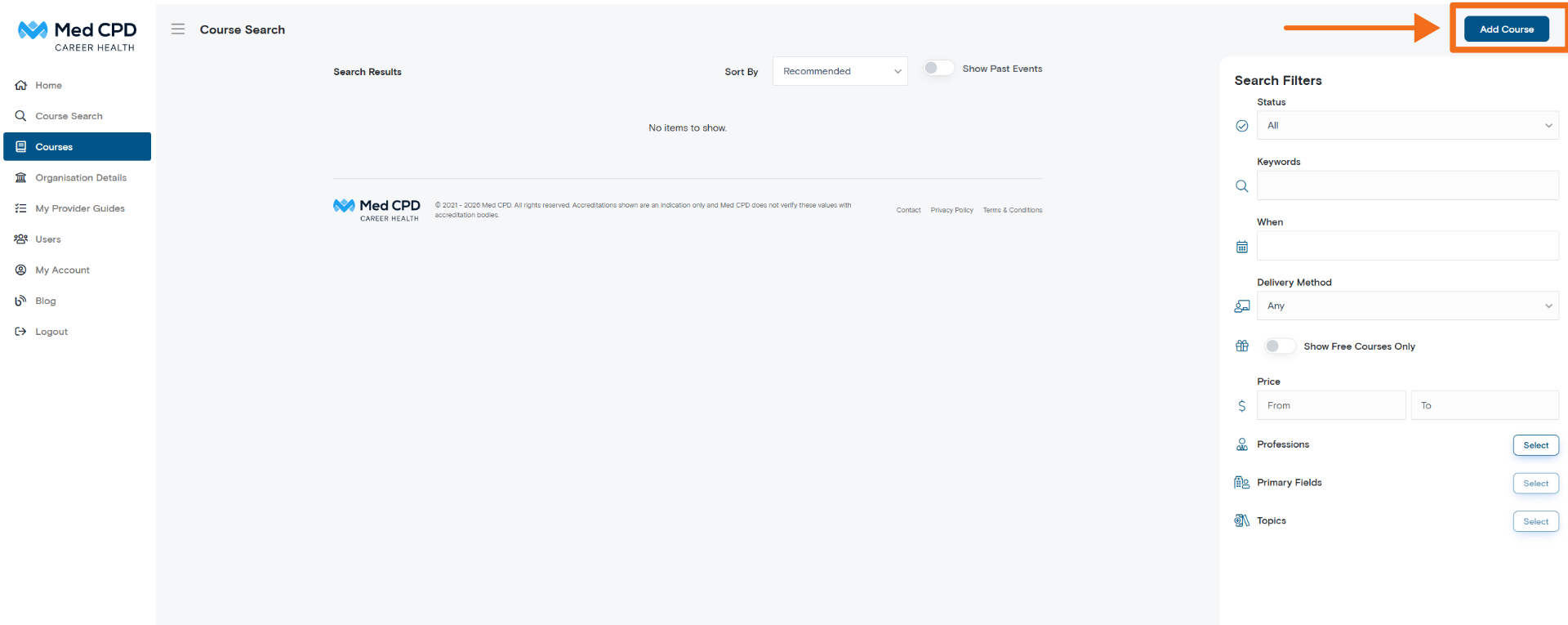
– Enter your course name in the pop-up window.
– Click Create.
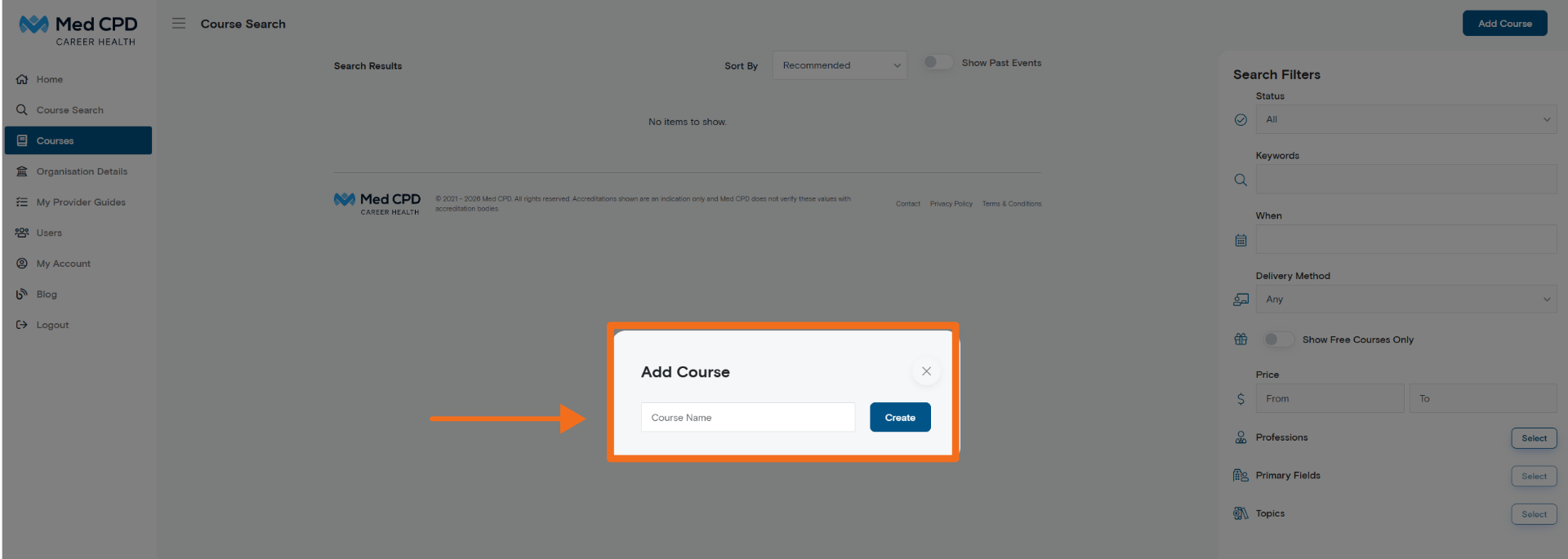
Your new course will open in the course editor, where you can add the details learners will see on Med CPD.
Step 2: Complete the Course Details tab
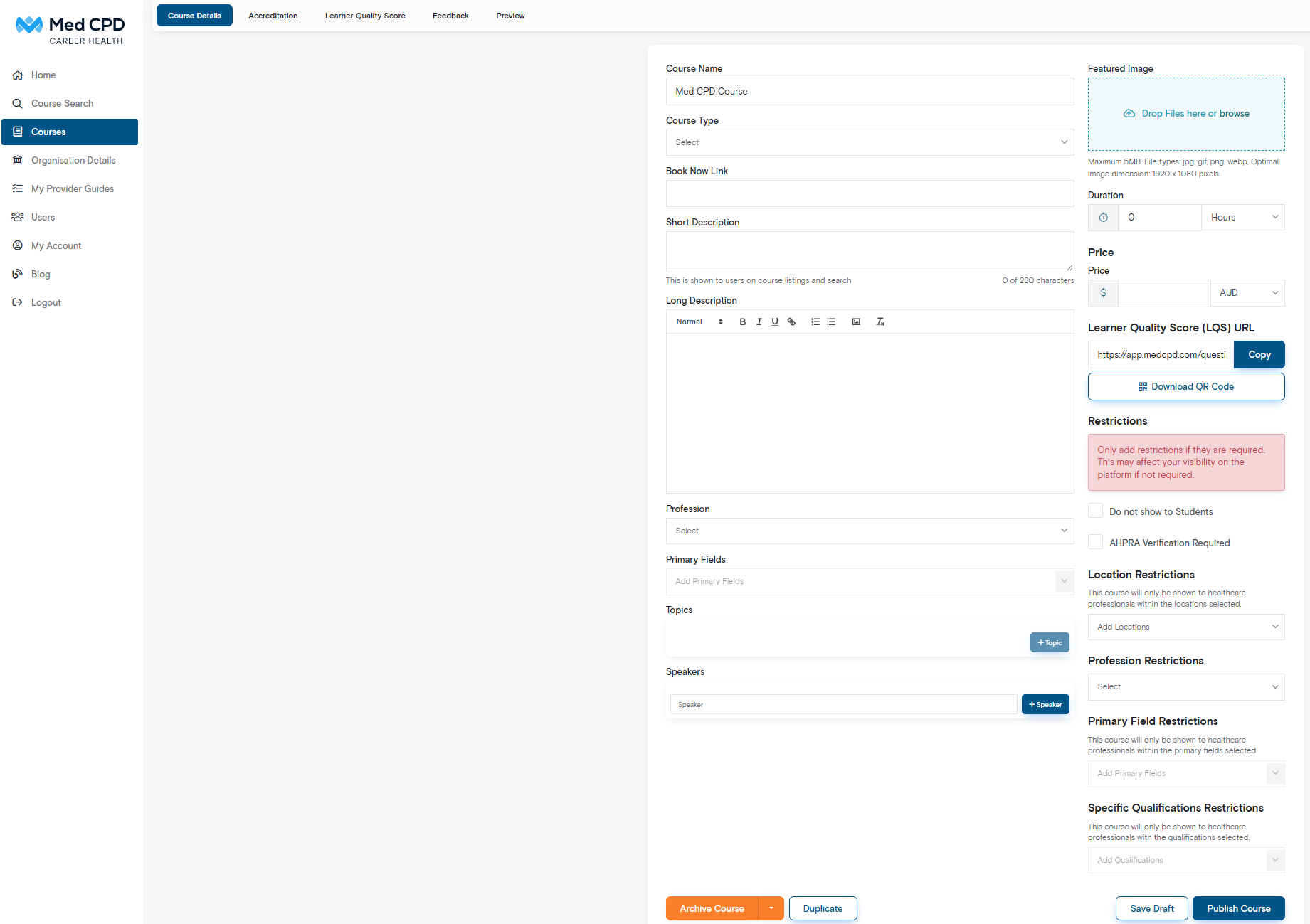
The Course Details tab contains the main information for your course. Complete the relevant fields so learners can understand what the course offers and how to access it.
Course name
Enter the name of your course. Use the full, recognisable title that learners will search for.
Course type
Select the course type that best describes your offering.
Book Now Link
Add the URL where learners can book or register for your course. Check that the link directs users to the correct page.
Short Description
Write a brief summary of your course. This appears on course listings and in search results, so focus on what the course is about and why it may be relevant to learners.
The short description has a maximum length of 280 characters.
Long Description
Provide more information about your course in the long description field. Use the formatting toolbar to organise the content and make it easy to read.
Consider including the course content, what participants can expect and other useful information about the learning experience.
Step 3: Add an image, duration and price
These fields appear on the right-hand side of the Course Details page.
Featured Image
Upload an image to represent your course. You can drag and drop a file into the upload area or click to browse for one.
– Maximum file size: 5 MB
– Accepted formats: JPG, GIF, PNG and WebP
– Recommended dimensions: 1920 × 1080 pixels
Choose an image that is relevant to your course and displays clearly.
Duration
Enter the duration of the course and select the appropriate unit, such as hours.
Price
Enter the course price and select the relevant currency.
Step 4: Select the profession, fields and topics
These sections help categorise your course so healthcare professionals can find education relevant to their work.
Profession
Select the profession or professions the course is intended for.
Primary Fields
Choose the relevant primary fields for your course.
Topics
Add topics that describe the main subject areas covered by the course. Select + Topic to add a topic.
Use relevant categories so learners can better understand the course content and find it through search and filters.
Step 5: Add speakers
If your course features presenters or facilitators, enter their names in the Speakers section and select + Speaker to add them.
Step 6: Review restrictions and visibility settings
The right-hand side of the course editor includes several settings that affect who can see or access your course.
Do not show to Students
This checkbox controls whether the course is hidden from students.
AHPRA Verification Required
Select this option if AHPRA verification is required for the course.
Location Restrictions
This section allows you to select locations for the course. The page notes that the course will only be shown to healthcare professionals within the selected locations.
Profession Restrictions
This section allows you to restrict the course based on profession.
Primary Field Restrictions
This section allows you to restrict the course based on selected primary fields.
Specific Qualifications Restrictions
This section allows you to restrict the course based on selected qualifications.
Review these settings to make sure the course visibility reflects your intended audience.
Step 7: Preview your course
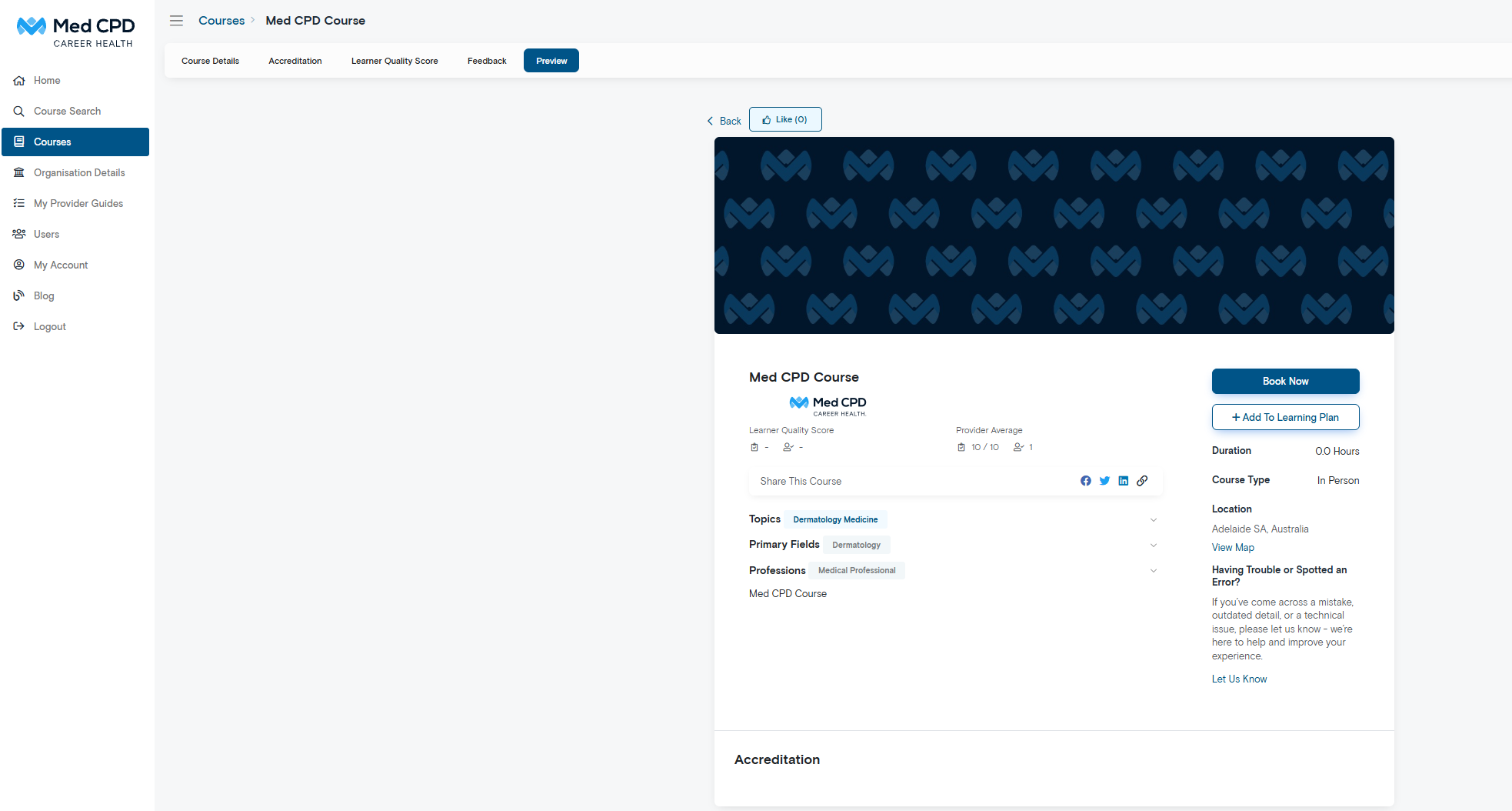
Select the Preview tab to see how your course listing will appear to learners on Med CPD.
Review the course title, featured image, provider information, description, duration, location, topics and other displayed details. Check that the information is accurate and easy to understand.
If you need to make changes, return to the Course Details tab and update the relevant fields before publishing.
Step 8: Save your draft or publish your course
When you’ve finished entering your course details, use the buttons at the bottom of the course editor.
Save Draft: Save your work without publishing the course.
Publish Course: Publish your course listing on Med CPD.
Before publishing, check that your course information is accurate, your booking link works and your visibility settings are correct.
Once you’re happy with the listing, select Publish Course.
Step 9: Check your course listing
After saving or publishing, return to Courses to locate your course.
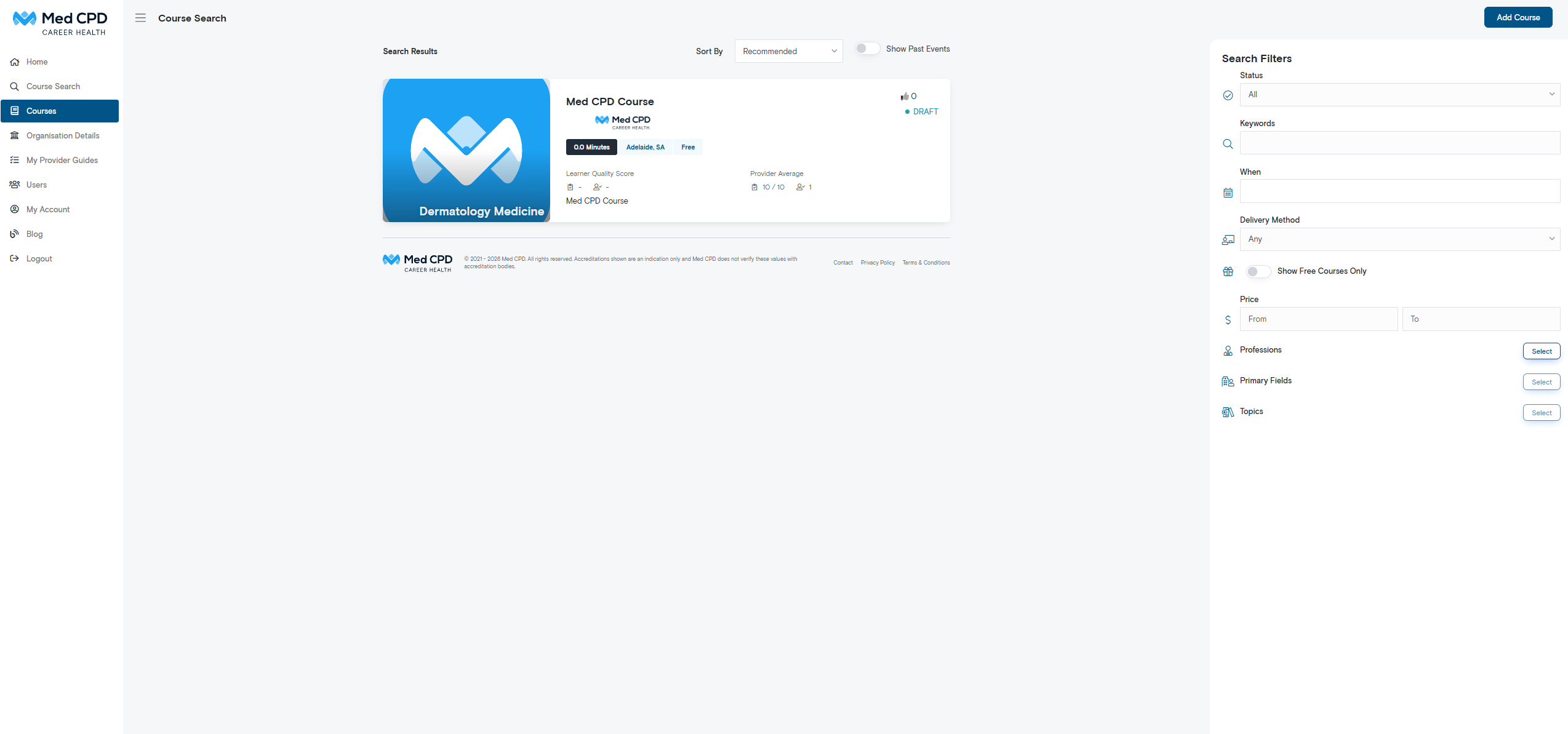
Your course appears as a card in Course Search. Check the status displayed on your own course to confirm whether it has been published.
You can open the course again if you need to review or update its details.
Your course is ready
You’ve now worked through the main steps for creating a course on Med CPD.
Before finishing, make sure your course information is accurate, your booking link works and your listing clearly explains the learning opportunity to potential participants.
If you need to make further changes, return to Courses in your provider dashboard and open the relevant course.
Share to: